

Streamline Workflows on Bentley CAD platforms
Streamline your workflows and personalize your experience with Terrasolid software on Bentley CAD platforms using the tools presented in this Technical Note.
Many users repeat similar workflows across multiple projects. The customizations outlined below can save significant time and enhance the overall user experience.
Interface customization
Ready-made Terrasolid Toolbox ribbon files are available for download here: download Terrasolid Ribbons. Follow the instructions in the included PDF to import the ribbons into Bentley CAD. Below is an example of the TerraScan Toolbox ribbon that has tabs for each Toolbar. This is an alternate way of using the Toolbox tools.
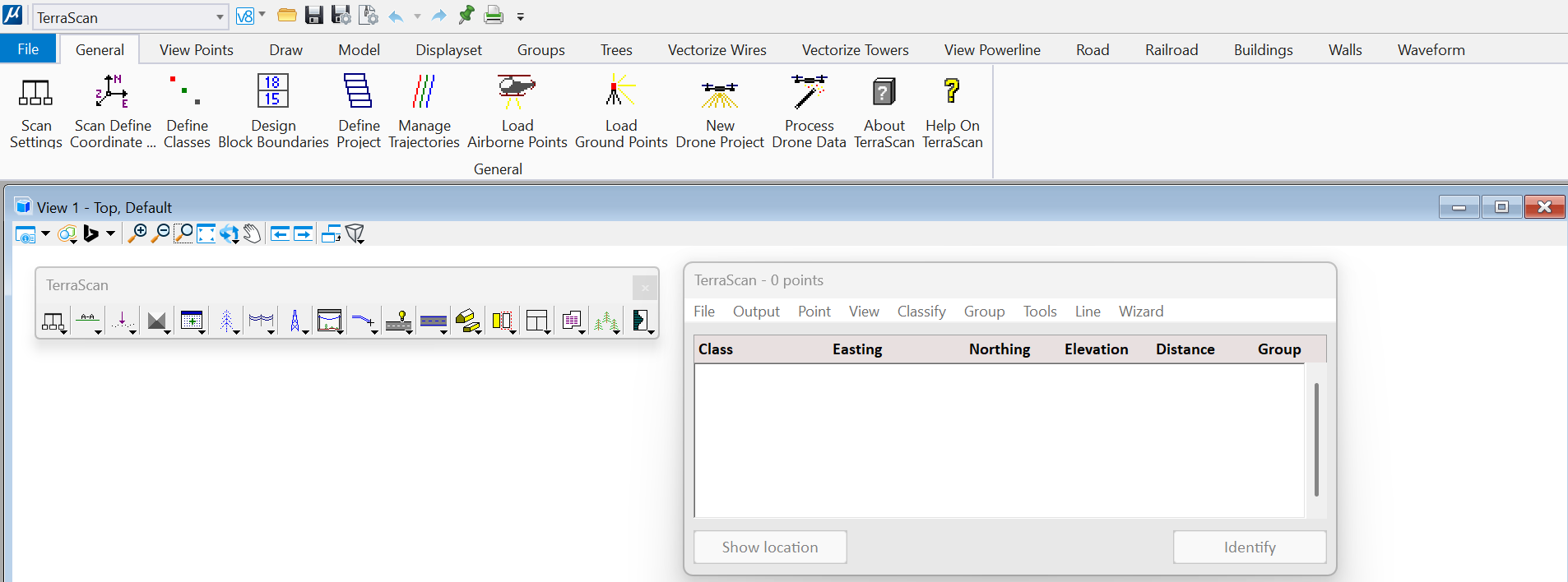
Often the full extensive collection of tools in Terrasolid software products such as TerraScan is not needed by every user. Unused tool icons in both Bentley CAD and Terrasolid software can be hidden by simply right-clicking on them. A more permanent solution is to create custom ribbons tailored to specific workflows. This can be done with the ribbon customization tools for Bentley platforms. Below is an example of a custom ribbon that includes in its first tab most of the Bentley CAD tools that are useful for TerraScan users. The other tabs have collections of TerraScan tools that are thematically organized by personal preference and need.

Function Keys and Keyboard Shortcuts
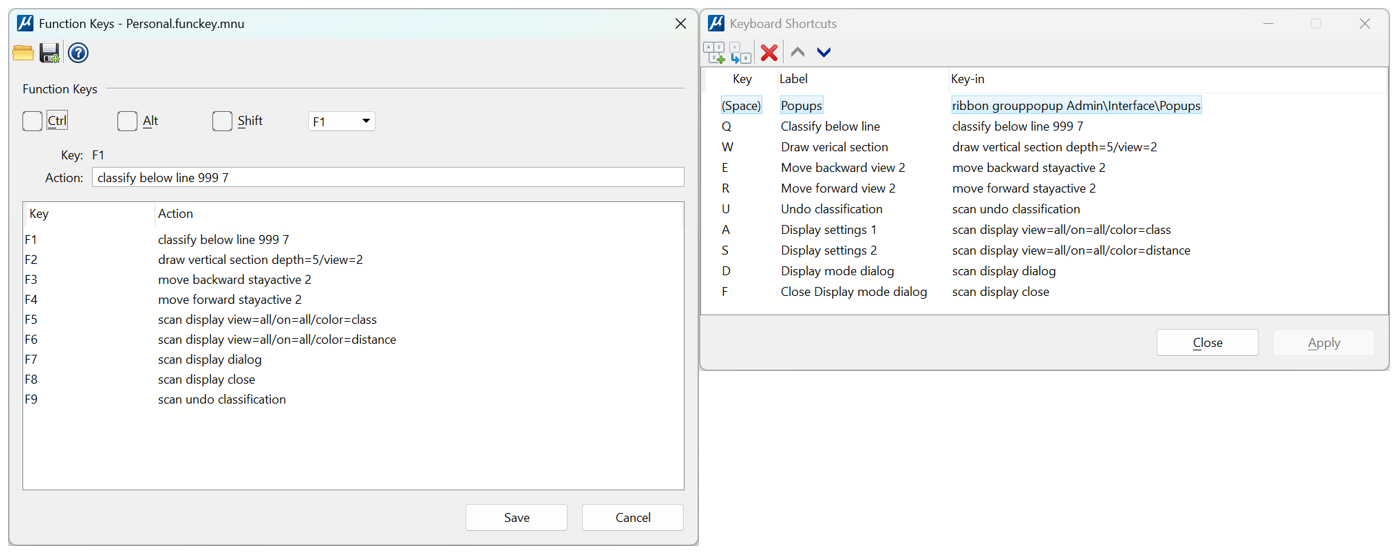
Keyboard Shortcuts can significantly speed up repetitive tasks and improve the ergonomics of software use. Many different Terrasolid software tools can be called using Key-in commands and these commands can be mapped to the keyboard on Bentley platforms using Function Keys and Keyboard Shortcuts. Function keys work no matter the input focus while Keyboard Shortcuts often require the main Bentley CAD window to be selected. Below is an example of Function Keys and Keyboard Shortcuts designed for manually classifying low points through the use of a vertical section sweep. Additionally, predefined Display settings and Undo classification tools have been assigned to keys.
Default Terrasolid software tool settings
An additional way to streamline work in Terrasolid software is through the editing of the default tool settings. For example, the Default project setup can be customized in the TerraScan Settings. Other useful default setups include Point display and Coordinate setup.

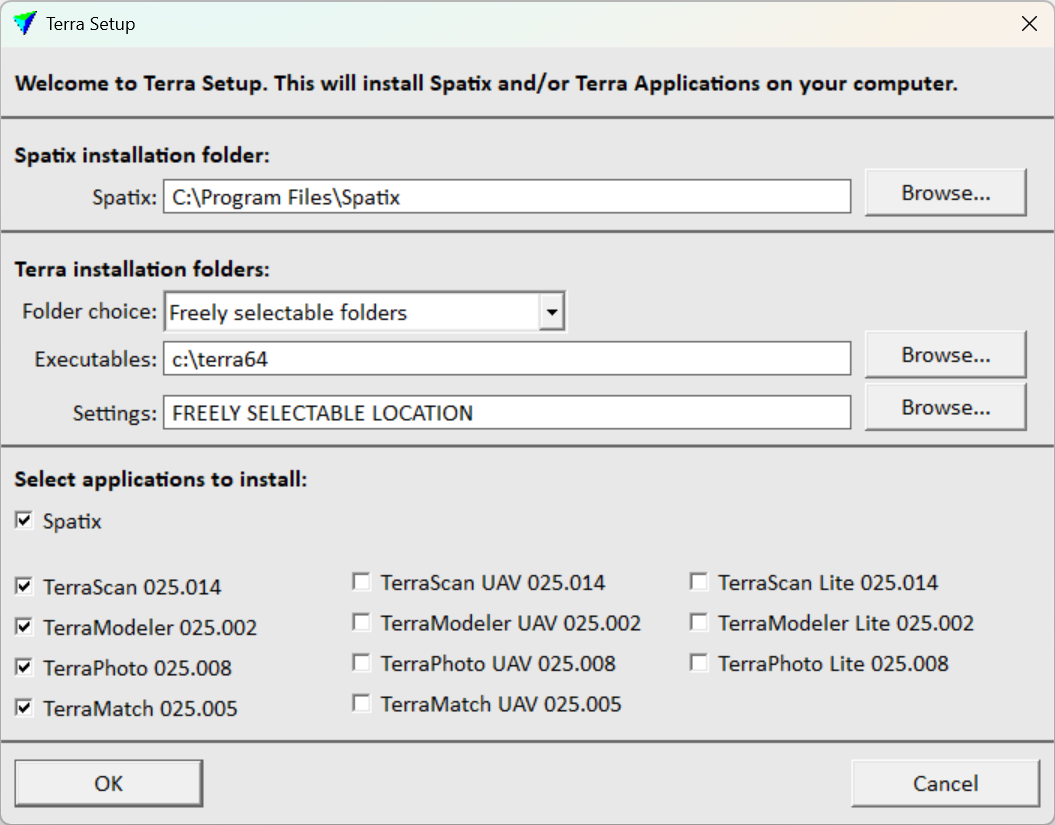
Terrasolid software settings can be stored in a network-accessible folder, allowing multiple users to share configurations. This folder location can be specified during software installation.
Scripting
One of the most advanced streamlining and customization option in Terrasolid software is the utilization of custom Scripts through the Scripting Interface. These allow, for example, the packaging of tools into larger automated workflow processes.
The Scripting Interface is introduced in the webinar recording accessible through this link: Scripting Interface Webinar
A more recent addition to Bentley MicroStation is the Python scripting interface which is covered in the webinar below.
Addons
Another advanced customization option is Addons which provide, for example, the ability to build new tools on top of the existing ones. These custom tools are accessible through Tools pull down menu and can be made using the DLL Interface. An example intensity histogram addon tool is provided with the software download.

Written by:
 Lucas Magnusson
Sales Support Engineer at Terrasolid Ltd.