

TerraScan User Guide
Train model
Not Lite
Train model command can be used to build and train a group classification model for custom classification tasks. The created model can be used to classify point groups Using trained model.
Typical use cases for a custom trained classification model are, e.g., classification of arbitrary above ground objects, and tree species classification.
The model training requires a representative sample of classified point groups. In addition, other pre-processing steps enable wider selection of attributes to support the classification task, for example, leveraging the distance, or normal vector attribute values.
A typical workflow for model training, and using the model for classification is:
2.Compute distance from ground for above ground points.
3.Classify by distance from ground, selecting the above ground points.
4.Compute normal vectors for points.
5.Assign groups to above ground points.
6.Use manual and/or automatic classification tools to classify the training sample. For example, use Inspect groups to systematically classify point groups. For example, classify individual tree species to separate classes.
7.Train model based on the sample groups. Add parameters and run training to build a classification model reaching desired classification accuracy.
The optimal combination of parameters depends on the data, and the target objects.
8.Save the model file.
9.Classify groups using the trained model.
To train a group classification model:
1. Prepare a classified training data sample.
2. Select Train model command from the Group pulldown menu.
This opens the Select Training Classes dialog:

The upper part of the dialog shows a list with all classes for which groups are assigned and the amount of sample groups for each class.
5. Select classes you want to use for testing. Define additional settings.
Setting |
effect |
|---|---|
Model |
The machine learning classifier model to train: •Decision forest - decision tree based classifier model. •Histogram gradient boosting - a model providing better accuracy and run efficiency on large amount of training groups, but being unstable if having small training sample. |
Limit |
The maximum number of groups in each class to use for model training. If using Random pick (recommended), the training group set is chosen by random for each Run training execution. |
Validation |
The percentage of groups in each class to keep for model validation. If using Random pick (recommended), the validation set is chosen by random for each Run training execution. |
Exclude groups at block edges |
If on, groups within offset limit from block boundary are excluded from the training process. This setting is useful for excluding edge groups from training process. The edge groups may be necessary to exclude if split by the block boundary, and thus poor quality for training. |
6. Click OK.
This opens the Train Model dialog.
The upper part of the dialog shows a list of parameters added to the model. Selecting a parameter row activates the parameter, displaying parameter specific details in the following parts of the dialog.
The central part of the dialog illustrates how good the sample classes can be distinguished by a selected parameter.
The first listings reports the classes, classification success rate for the class, and the class value range for the selected parameter. The success rate becomes available after first execution of model training.
The lower part visualizes the distribution of the parameter values for all the groups, helping to select relevant parameters distinguishing the groups in different classes.
The lower part of the dialog contains a list of all sample groups and their statistical value of a selected parameter. After executing the training the list shows the classification result according the current trained model, and the classification confidence. Critical sample groups that become misclassified are displayed in red. A selected sample group can be centered in a view by using the Show location button and placing a data click inside the view. A row corresponding to a point group in the cloud can be highlighted activating the Identify button, and clicking point group in a view. The Remove button excludes the selected row from the training process.
7. Select different parameters to the model automatically using Add best parameters, and manually using Add parameter. Validate how well the parameters distinguish the sample classes using the dialog information and the scatter graph.
8. Execute File / Run Training to run the training process.
This executes the model optimization. Evaluate the model success rates, and return to step 7 to improve the model if needed.
9. Execute File / Save Model As to store the classification model file.
This saves the model definition and parameters into a file. The model file can be used with Classify groups using the trained model action.
Command |
effect |
|---|---|
File / Open Model... |
Open a previously trained model from a file. |
File / Run Training... |
Run model training. This optimizes the model weights and updates the classification result, confidence, and success rate details in the dialog. |
File / Reset Validation Groups |
Opens Reset validation groups dialog for redefining the Validation parameter set at tool start. Useful for clearing the validation set to run training on all the training data once model is confirmed to provide desired results. |
File / Rebuild Groups... |
Refresh the group list to correspond the point cloud. Use to update list information after modifying the grouping or classification of points in middle of the model creation and training process. |
File / Save Model As... |
Store the trained model into a file. |
Parameter / Add |
Open Add Parameter dialog for adding a new parameter to the model. |
Parameter / Remove |
Remove selected parameter from the model. |
Parameter / Add Best |
Software identifies optimal parameter to improve the model success rate and adds it to the model. |
View / Settings |
Open dialog for defining display setup for viewing active group. |
View / Scatter Graph... |
Display a scatter graph of two model parameters. |
View / All Groups |
If on, all training sample groups are listed in the dialog. |
View / Misclassified Groups |
If on, only sample groups misclassified by the current model misclassifies are listed in the dialog. |
Show Location |
Enable highlight of the current group points on view mouse hover. On data click, center the view to show the group. |
Identify |
Activate group row highlight on click to a point group. |
Remove |
Exclude the selected group row from the training and remove it from the group list. |
We recommend testing different models and parameter combinations for each task to identify the best performing solution.
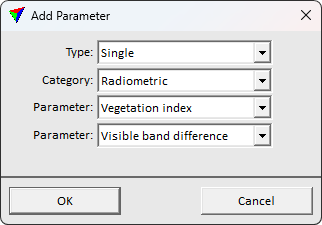
The classification can use several different parameters. The parameters are evaluated for each group, using the group's points. The classification is based on the group parameter values.
A parameter's type can be Single or Ratio. Single parameter uses the details directly. Ratio combines two unique parameters to gain separation for parameters with a relationship.
Parameters are divided in three different categories: Geometric, Radiometric and Computational. Geometric parameters describe the distribution of group points. Radiometric parameters describe the response to laser pulse and in color. The computational parameters describe more complex characteristics of the groups.
Some parameters require pre-computed point attributes. Compute distance, and normal vector attributes for points prior to the training process.
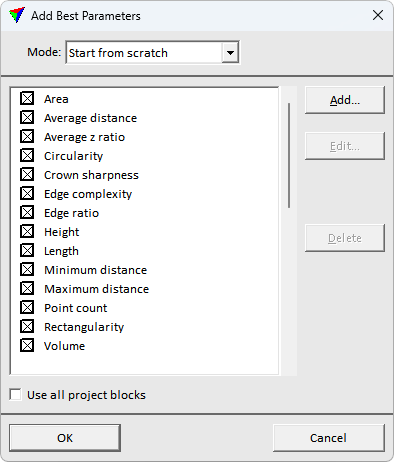
The classification is based on the group parameter values. This commands selects automatically the parameters for model, that result in highest classification accuracy with the used training data.
This tool allows efficient machine learning model preparation by automatizing the model parameter selection.
To add the optimal parameters to the group classification model:
1. Select command Parameter > Add best.
The Add Best Parameters dialog opens.
2. Select mode Start from scratch or Keep current parameters. This a specifies if the optimization discards the current parameter selection, or adds new parameters to the existing parameter set.
3. Click OK to run parameter selection. If Use all project blocks is on, the parameter selection uses project points in parameter selection. Otherwise, the selection is based on loaded points.
This adds the best parameters to the model, optimizing the classification accuracy with the training data. Run training to finally construct the applicable model.
The scatter graph displays the distribution of group parameter values. It is useful for identifying correlation and relationship between different parameters, those can be utilized to make parameter combination separating the groups from each other.
Each point in the graph represents a group, and the color of a point corresponds the class color.
X / Y parameter settings control the graph axis parameters. The size option controls the display size of graph points.