

TerraScan User Guide
TerraScan Window
The TerraScan window is opened when TerraScan is loaded and if the Open main window option in the Operation category in TerraScan Settings is switched on.
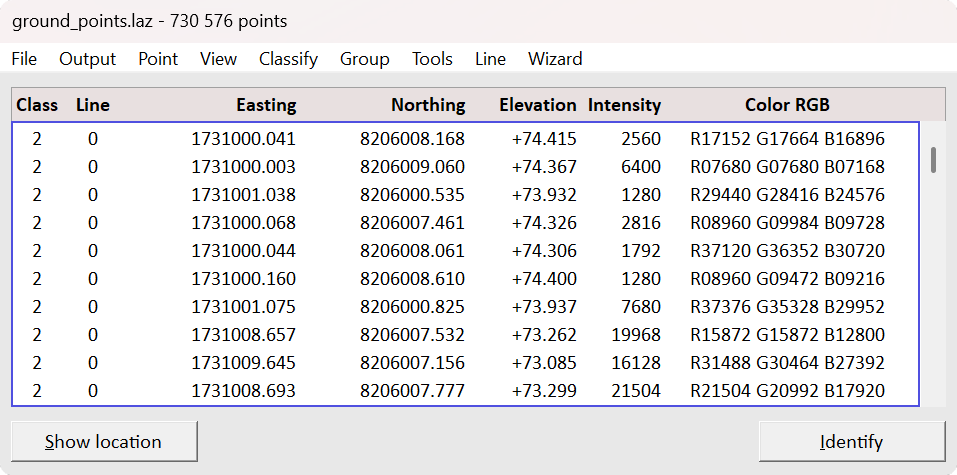
The TerraScan window contains pulldown menu commands that are used to process point cloud data loaded into RAM. If data is loaded by any tool or command for loading points, the software reads the points into RAM. As long as the TerraScan window is open, the points remain in memory and can be displayed and processed.
The TerraScan window has four view dialogs: Minimal, Medium, Large and Wide dialogs. The view mode can be changed from the View pulldown menu. Minimal dialog shows only the pulldown menu commands. Medium, Large and Wide dialogs show a list of the loaded points. The list contains attributes of each point that are set to be visible in the Fields dialog. The window can be resized by dragging a border in Medium, Large and Wide dialogs.
To show the location of a point, select the point from the TerraScan window’s list of points. Click on the Show location button and move the mouse pointer into a view. This highlights the selected point as an intersection of two lines. You can show the location of several points by selecting multiple points from the list. The points are highlighted with squares.
To identify a point, click on the Identify button and then the point in a view. This selects the corresponding line in the Main window’s list of points.
If the TerraScan window is accidentally closed, it can be re-opened with the key-in command:
However, points are unloaded from memory if the TerraScan window is closed.
The mouse button(s) defined in the CAD platform can be used to snap to a point. This may be helpful, for example, for dynamically rotating a view around a location in the point cloud or for digitizing vector data based on the point cloud. Snapping to points can be disabled in the Snapping category of TerraScan Settings.