

TerraScan User Guide
Split Tree Group
 Split Tree Group tool breaks an assigned group to multiple groups. The reassignment is controlled by seed points. A seed point defines the approximate center position of a group horizontally.
This tool is useful for splitting groups when several trees appear close by each other, resulting to one big group containing two or more trees after grouping points automatically by tree logic.
The tool expects that a distance from ground value is computed for the points in the source class for grouping. The value can be computed by using the Compute distance command for loaded points or the Compute distance macro action.
To split a tree group:
1. Assign groups using the highest point method of By tree logic routine.
2. Select the Split Tree Group tool.
3. Identify the group to split with a data click.
This opens the Split Tree Group dialog:
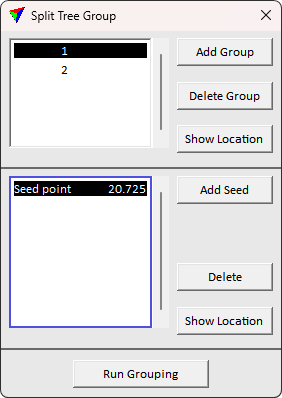
4. Identify the number of trees in the group. Initialize more tree groups using the Add Group button, if needed.
3. Select an initialized group on the list. Define seed point(s) for the group using Add Seed.
Add seed point(s) for every initial tree group.
3. Click Run Grouping to assign the new groups.
This assigns the groups and shows the group colors on the group list. The group points can be highlighted using Show Location next to the group list.
To add a seed point:
1. Press the Add Seed button.
This opens the Add Seed dialog:
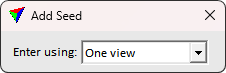
2. Select the One view entry mode.
3. Define the seed position with a data click.
OR
2. Select the Two views entry mode.
3. Define the seed position with a data click in a top view.
4. Define the seed position with a data click in a section view.
This adds the seed point definition to the seed list snapping to the group laser point closest to the clicked position.
SETTING |
EFFECT |
|---|---|
< Group list > |
Lists the groups. After Run Grouping, displays color selection controls for group display. |
Add Group |
Initialize a new group to the group list. |
Delete Group |
Delete a group initialization. This is active only if a group row is selected. |
Show Location |
Highlight the group points when hovering. This is active only after Run Grouping and if a group row is selected. |
< Seed point list > |
Lists the seed points and the absolute elevation of each seed. |
Add Seed |
Add a new seed point. |
Delete |
Remove a seed point. This is active only if a seed row is selected. |
Show Location |
Highlight the seed location when hovering. This is active only if a seed row is selected. |
Run Grouping |
Execute the split. |
Use Displayset toolbox to limit the point display to the interest group only. Use Synchronize Views to display the same region in multiple views with different coloring options.