
TerraScan User Guide
Fit to reference using cloud matching
Fit to reference using cloud matching command applies a systematic correction to a data set. The correction may include translation in XYZ direction and rotation around XYZ axes.
The correction is computed based on reference points loaded into TerraScan. See Read reference points command for more information. The correction is applied to the active points loaded in TerraScan.
The full correction is calculated using two methods. In the first phase the calculation does surface based comparison between the active data and the reference, like the tool fit to reference using surfaces. The second part refines the correction with cloud-to-cloud approach minimizing point-to-point distances between active and reference data.
To fit points to reference points:
1. Load points and reference points into TerraScan.
2. Select Fit to reference / Using surfaces command from the Tools pulldown menu.
This opens the Fit to Reference using Surfaces dialog:
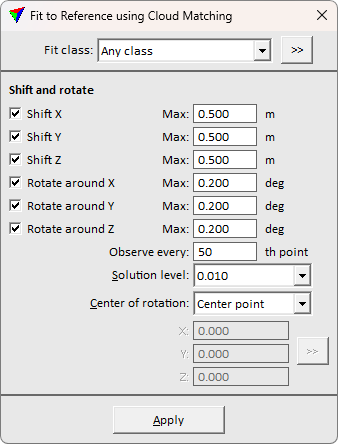
3. Define settings and click OK.
This fits the active points to the reference points.
SETTING |
EFFECT |
|---|---|
Fit class |
Class(es) used for computing the fit. |
|
Opens the Select classes dialog which contains the list of active classes in TerraScan. You can select multiple source classes from the list that are then used in the Fit class field. |
Shift X |
If on, a translation in X direction is computed and applied up to the given Maximum value. |
Shift Y |
If on, a translation in Y direction is computed and applied up to the given Maximum value. |
Shift Z |
If on, a translation in Z direction is computed and applied up to the given Maximum value. |
Rotate around X |
If on, a rotation around the X axis is computed and applied up to the given Maximum value. |
Rotate around Y |
If on, a rotation around the Y axis is computed and applied up to the given Maximum value. |
Rotate around Z |
If on, a rotation around the Z axis is computed and applied up to the given Maximum value. |
Observe every |
Determines how many points are used for computing the translation and rotation correction. |
Solution level |
Level of accuracy for the correction values. The selection list provides some accuracy levels depending on the CAD file master and secondary units. |
Center of rotation |
Defines the center point for rotating the point cloud: •Center point - center point of the active point cloud. •User point - user-defined point. |
X | Y | Z |
XYZ coordinate values of the center of rotation. Define the point by typing values in the text fields or by using the >> button next to the coordinate fields. This is active only if Center of rotation is set to User point. |
|
Lets you define the point of rotation with a data click inside a CAD file view. You may use the snapping functionality of the CAD platform to define the point exactly based on an element drawn in the CAD file. This is active only if Center of rotation is set to User point. |
