

TerraScan User Guide
Cloud information
Cloud information tool lets you select the type of the point cloud loaded in TerraScan, and the active projection system. The tool can be used to change the information if it has not been selected correctly when reading points. Selecting the correct type is recommended in order to optimize the processing speed for many automatic routines.
Selecting the correct system optimizes processing settings and tasks applied in Process drone data wizard.
To change point cloud information:
1. Select Cloud information tool from the File pulldown menu.
This opens the Cloud information dialog:
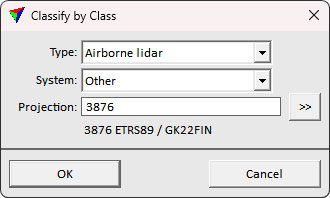
2. Define settings corresponding the loaded points.
3. Click OK.
This applies the defined information on the loaded points.
SETTING |
EFFECT |
|---|---|
Type |
The data collection platform: •Airborne lidar - point cloud captured by an airborne laser scanner system. The system is carried by flying vehicle. •Mobile lidar - point cloud captured by a mobile laser scanner system. The system is carried by a ground-based vehicle. •Stationary lidar - point cloud captured by a static terrestrial laser scanner system. The scanner is mounted on a static device such as a tripod. •Airborne photo - photogrammetric point cloud generated from airborne images. The images are captured from a flying vehicle. •Mobile photo - photogrammetric point cloud generated from mobile images. The images are captured from a ground-based vehicle. •Stationary photo - photogrammetric point cloud generated from static terrestrial images. The images are captured by a static camera mounted on a tripod. •Boat sonar - point cloud captured by a sonar mounted on a boat. •Mixed - point cloud produced by different devices. |
System |
The sensor system model used in data collection. |
Projection |
Active projection system. Specifies the coordinate system which the loaded points are stored in. |