

TerraScan User Guide
Upload to LumiDB
Upload to LumiDB command publishes point cloud files to a LumiDB reality capture database.
To upload point cloud data to LumiDB:
1. Select Upload to LumiDB command from the Tools pulldown menu.
This opens the Upload to LumiDB dialog:
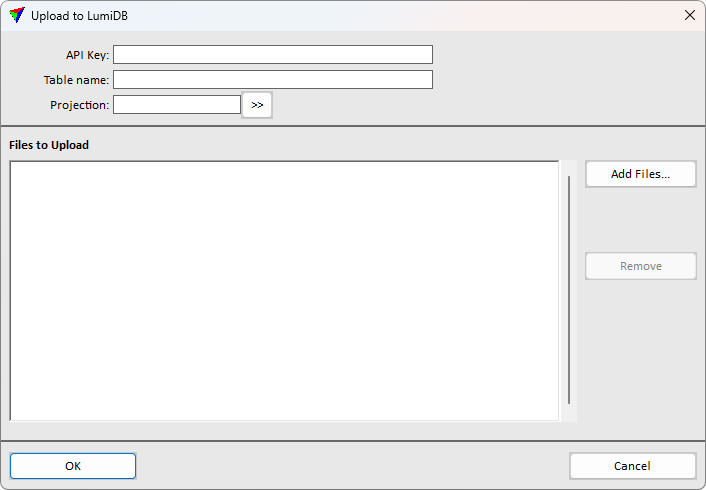
2. Define settings and click OK.
This starts the upload of the selected las and/or laz file(s) to the LumiDB database.
SETTING |
EFFECT |
|---|---|
API key |
LumiDB service authorization key. |
Table name |
LumiDB data table name where to publish the data. Used for structuring the uploaded data. In LumiDB user interface, Table is also called Dataset. |
Projection |
Active projection system for the data. Specifies the coordinate system for the receiving database server. Click on the >> Button to open the Browse for Projection System dialog. The dialog provides a search option for projection systems as well as a list of all implemented systems. In addition, any user-defined projection systems are included in the list. |
Files to Upload |
Add Files in las or laz formats to the list for upload. |