

TerraScan User Guide
Paste Points
 Paste points tool places points from TerraScan clipboard to the active point cloud. This tool is most useful for manual edits of visualization with Gaussian Splats.
Use other tools in this same toolbox to extract points to the clipboard before using this tool.
To paste points:
1. Select the Paste Points tool.
This opens the Paste Points dialog and enables the preview of points to paste:
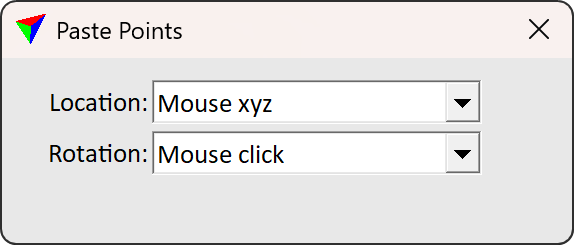
2. Define settings.
3. If Location is set to Original, accept location with a data click.
This sets the paste position.
OR
3. If Location is set to Mouse xyz or Mouse xy, specify the paste position with a data click identify the top of a tree with a data click.
This sets the paste position.
4. If Rotation is set to Original, accept the rotation with a data click.
This sets the rotation and pastes points to the scene.
OR
4. If Rotation is set to Mouse click, specify the point set rotation with mouse. Accept rotation with a data click.
This sets the rotation and pastes points to the scene.
SETTING |
EFFECT |
|---|---|
Location |
Determines how location for pasted point set is defined: •Original - points set pastes to the same point where the points were copied from. •Mouse xyz - point set pastes to the position defined with a mouse click. •Mouse xy - point set pastes to the position defined with a mouse click. Elevation for pasted points is height from Ground surface. This option requires distance attribute computed for the points on the clipboard. |
Rotation |
Determines how rotation of pasted point set is defined: •Original - point set pastes in same orientation as original. •Mouse xyz - a mouse click specifies the pasted point set orientation. |
Ground |
Ground point class determining the ground level. This is available only if Location is set to Mouse xy. |
|
Opens the Select classes dialog which contains the list of active classes in TerraScan. You can select multiple source classes from the list that are then used in the Ground field. |
