

TerraScan User Guide
Starting the Fit Geometry Components application
The application can be started from TerraScan Fit Geometry Components tool which is part of the Road toolbox.
This opens the Component fitting main window:
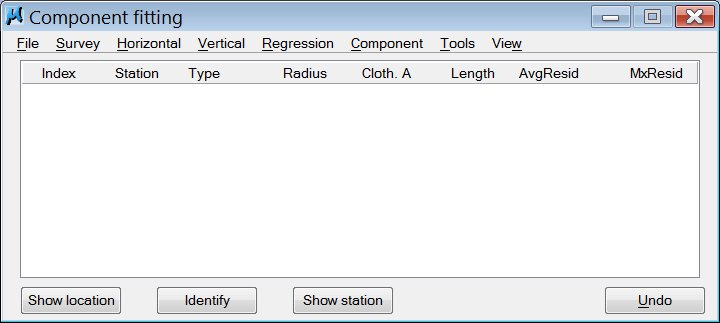
The main window contains pulldown menus with commands, buttons, and the list of geometry components. The list is displayed as soon as a geometry has been created. The menu commands are activated when their use becomes possible during the geometry generation progress. All commands can also be activated by key-in commands and most of them are specified in section Tools for component modification.
The following list provides an overview of the functionality included in the pulldown menus:
1. File
Remove non-essential but helpful elements created during the work with geometry components from the CAD file.
Export the geometry into a text file.
2. Survey
Create a filtered version of the survey vector.
View some basic properties of a CAD file line string.
Calculate and display curvature information for the filtered line string.
3. Horizontal
Create a preliminary horizontal geometry.
Activate a horizontal geometry from the elements in the CAD file.
Read horizontal geometry from a text file. Only the application's own file format is supported.
Save the horizontal geometry into a text file.
4. Vertical
Create a preliminary vertical geometry.
Activate a vertical geometry from the elements of the CAD file.
Read vertical geometry from a text file. Only the application's own file format is supported.
Save the vertical geometry as a text file.
5. Regression
Automatic modification of single or all components so that they follows the filtered line string more closely.
Refitting the lengths of the segments.
6. Component
Tools for modifying the circular arc radius of curvature, joining of components, and changing the type of a component. Note, that these tools make a modification considering only the continuity of the model, the continuity of its tangent and curvature, if applicable.
Finding components using different criteria, for example the shortest component.
7. Tools
Modifying some set of components of the current geometry automatically.
Visualizing the residual or error of the fit.
Modifying the weight of different points of the survey vector.
8. View
Making the vertical or the horizontal geometry active.
See Component fitting main window for more information about the content of the main window after a geometry has been created.