Create a macro
Not Lite
A macro can be created in TerraScan using the Macro command from the Tools pulldown menu in the TerraScan window. The Macro dialog lets you add, modify, delete, and arrange processing steps and comments. It also provides pulldown menu commands to open, save, and run macros. Each line in the macro dialog represents one comment line or one processing step that is performed on the point cloud when running a macro.
To create a macro:
1. Choose Macro command from the Tools pulldown menu in the TerraScan window.
This opens the Macro dialog:
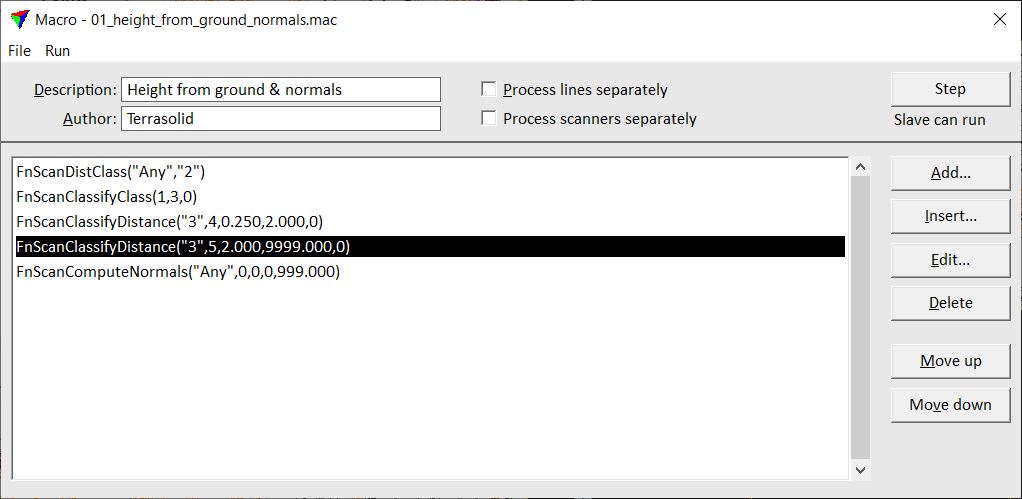
2. (Optional) Type a description of the macro in the Description field.
3. (Optional) Type your name in the Author field.
4. Click Add to add a new processing step to the macro.
This opens the Macro step dialog, a dialog for defining Macro actions and related settings.
5. Define settings for the macro step and click OK.
You can continue to steps 4 and 5 until all the steps are complete.
6. Select Save as from the File pulldown menu to save the macro into a file.
SETTING / Button / Command |
EFFECT |
|---|---|
Description |
Description of the macro. |
Author |
Name of the author. |
Process lines separately |
If on, the macro steps are performed for each line separately. Line refers to data of a single line in an ALS data set or a single drive path in an MLS data set. Lines are identified in the point cloud by the line attribute, a unique number for each point. |
Process scanners separately |
If on, the macro steps are performed for each scanner separately. Scanner refers to data of a single scanner in a multiple scanner system (usually MLS systems). Scanners are identified in the point cloud by the scanner attribute, a unique number for each point. |
Step |
By clicking this button, the selected macro step is executed on loaded points. With this button, you may check settings of macro actions step-by-step. |
Slave can (not) run |
The note indicates whether a macro can be processed in TerraSlave or not. See TerraSlave User Guide for more information. |
Add |
Add a new macro step. |
Insert |
Insert a new macro step before the selected macro step. |
Edit |
Modify settings for the selected macro step. |
Delete |
Delete the selected macro step. |
Move up |
Moves a selected macro step one line up in the macro. |
Move down |
Moves a selected macro step one line down in the macro. |
File / New |
Create a new macro. This removes any active macro from the macro dialog and starts a new macro definition. If another macro is still active, a dialog asks you to confirm whether you want to start a new macro or not. |
File / Open |
Open an existing macro file. This opens a standard Windows dialog for opening files. |
File / Save |
Save changes to an existing macro file. |
File / Save As |
Save a macro into a new file. This opens a standard Windows dialog for saving files. |
Run / On loaded points |