

TerraBatch User Guide
TerraDispatcher
TerraDispatcher is the software component of TerraBatch that allows the user to manage the processing task. It provides a graphical user interface that contains lists of working segments and participating computers, as well as controls for modifying the way of processing.
The TerraDispatcher interface is opened on the master computer as soon as a task is launched.
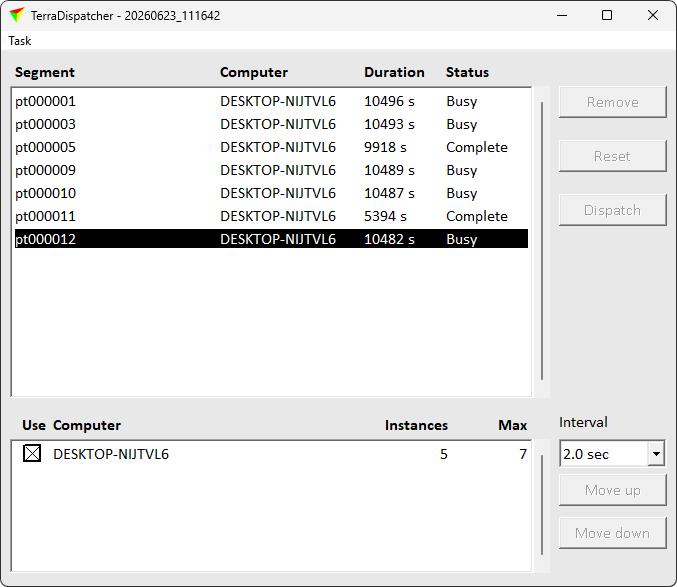
List of working segments
The upper list in the window shows all working segments that need to be processed.
•Segment is the name of a working segment, such as the name of a TerraScan project block or the name of an image in TerraPhoto.
•Computer is the name of the computer that processes the working segment.
•Duration shows the processing time in seconds. This is updated automatically every 2 seconds.
•Status indicates the processing status of a working segment:
oPending - waiting to be dispatched and processed.
oBusy - currently processed.
oDispatched - dispatched to a computer but not yet processed.
oComplete - process completed.
List of computers
The lower list in the window contains available computers.
•Use Computer shows the names of all available computers. By default, all computers that are enabled in the Batch computers category of TerraScan Settings or in the TerraBatch Task Settings dialog of the Macro window of TerraScan are available for processing. Click on the square in front of the computer name in order to switch on/off a computer for processing.
•Instances shows the number of occupied instances on a computer.
•Max shows the maximum number of instances used for automatic dispatching. Click on the number in order to modify it. If the number is increased, pending working segments are dispatched to the newly-available instances. If the number is decreased, the processing of already busy working segments is continued but automatic dispatching will wait until the number of occupied instances falls below the number of maximum instances. See recommendations for choosing a good number of instances.
A computer that is not available in the network is shown in red color and switched off from use.
User controls
By default, TerraBatch starts processing with automatic dispatching active. This means, the task is distributed to all available participating computers and instances. As soon as an instance becomes free, another pending working segment is dispatched to this instance. The user can pause the automatic dispatching if necessary.
Menu Command / BUTTON |
EFFECT |
|---|---|
Task / Pause automatic dispatching |
Pause the automatic dispatching of working segments. This enables other controls of the window for manual dispatching or task manipulation. This is available if automatic dispatching is active. |
Task / Resume automatic dispatching |
Resume the automatic dispatching of working segments. This disables most of the other controls of the window. This is available if manual dispatching is active. |
Abort task |
Aborts an active task and thus, stops the processing of all working segments on the master computer. The task file and all related working files for TerraBatch are moved to the \TBATCH\REPORTS folder. A task can not be aborted on batch computers, working segments that are already processed on batch computers will be finished. |
Remove |
Removes a working segment from the list. The report file of the working segment is moved to the \TBATCH\REPORTS folder, the processing status in the report is set to removed. The removal can not be undone. This is only active if automatic dispatching is paused and a working segment with status Pending or Complete is selected in the list. |
Reset |
Resets a working segment to status Pending. The instance used for processing the working segment becomes free. The working segment will be processed again. This is only active if automatic dispatching is paused and a working segment with status Busy or Complete is selected in the list. |
Dispatch |
Dispatches a working segment manually to the computer that is selected in the list of participating computers. A new instance on the computer starts immediately with the processing. This may exceed the maximum number of instances set for the computer. This is only active if automatic dispatching is paused, a working segment with status Pending is selected in the upper list and a computer is selected in the lower list of the window. |
Interval |
Determines how often the software checks the processing status and dispatches the next block if an instance becomes free. Choose a very short interval if processing of one block takes only a short time for processing. |
Move up |
Moves the selected computer up in the list of processing priority order. This is only active if another computer than the first one is selected in the list. |
Move down |
Moves the selected computer down in the list of processing priority order. This is only active if another computer than the last one is selected in the list. |
If a task is stopped in a way outside the user's control, for example, if TerraBatch crashes, the task file and all related files remain in the \TASK folder in the TerraBatch installation directory. Make sure to delete the task file from the folder manually before you start the next task in TerraBatch. If a task file is in the \TASK folder, TerraBatch always tries to execute this task file first and any other task file is stored in the \QUEUE folder. This may lead to the unwanted execution of old task files or, if the execution is no longer possible, if prevents TerraBatch from doing anything. It's also a good idea to clean up any old files from the \PROGRESS and \QUEUE folders.